

- Embed chat and calling into any WordPress website
- Customize themes, colors, and typography
- Toggle features on and off
- Go live with a WordPress plugin and shortcode
Ready to add chat to your WordPress website?
Go to the Integration Guide
Legacy Widget (v3): If you previously used the legacy CometChat Widget (v3) on WordPress, the legacy widget section in the Dashboard is only visible for apps that had legacy widgets configured before the migration to Widget Builder. New apps will not see the legacy widget section. For migration guidance, see the Migration Guide.
Widget Builder Features
No-Code Visual Configuration — Widget Builder provides a visual configuration environment for designing your chat widget before embedding. Toggle-Based Feature Control — Messaging and calling features can be controlled through configuration settings in the Widget Builder in dashboard. Ready-to-Embed Code — After configuration, Widget Builder generates a code snippet you can use with the WordPress plugin to embed chat.How to Use Widget Builder
1. Design
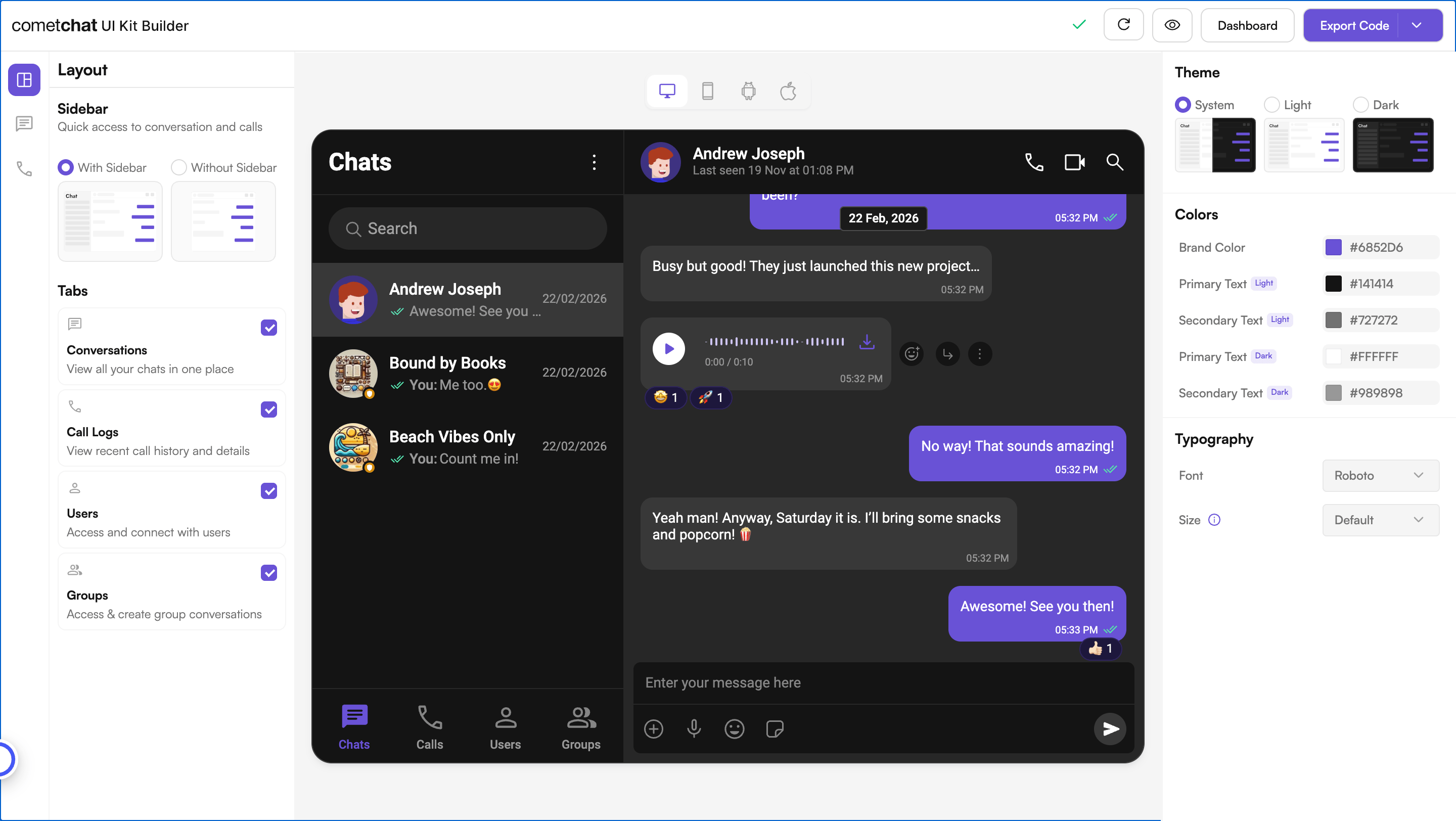
Customize your chat widget using the visual Widget Builder:- Configure layout — Toggle all the required features in the dashboard.
- Toggle features — Turn chat and calling features on and off from the builder interface.
- Themes — Select between system, light, and dark themes. Choose custom colors and typography.
2. Get Embed Code
Once configured, get the embed code snippet for your widget.- Click on Get Embedded Code
- Note your app credentials (App ID, Auth Key, Region, Variant ID)
- Copy the code snippet
What these credentials mean
3. Integrate
Install the CometChat plugin on your WordPress site and go live.- Install the plugin — Download and activate the CometChat WordPress plugin
- Configure credentials — Set your App ID, Region, and Auth Key in the plugin settings
- Authenticate users — Identify each visitor with a UID so they can send and receive messages (see Authenticating users below)
- Launch — Use shortcodes or the plugin settings to display the chat widget on your site
Follow the full Integration Guide
Step-by-step instructions for embedding the Widget Builder into your WordPress website
Authenticating users
Every person in CometChat is identified by a UID (User ID) — a unique, unchangeable string such asuser_123, an email, or a WordPress user ID. Before the widget can send or receive messages, the visitor must be logged in. In the WordPress plugin settings you can set a Default User UID to auto-login a specific user; CometChat creates that user the first time it sees the UID. To give each logged-in WordPress member their own chat identity, map their WordPress account to a unique CometChat UID.
Mapping logged-in WordPress accounts to CometChat UIDs (for example, deriving the UID from the WordPress user) depends on your theme and plugin setup. The shortcode and plugin settings in the Integration Guide show where the UID is configured.
Try Live Demo
Experience the CometChat Widget Builder in action:Launch Live Demo
Need Help?
Developer Community
Connect with other developers and get answers
Support Portal
Contact our support team for assistance
Related Resources
Authentication & User Management
Create users and issue server-generated auth tokens
JavaScript Chat SDK
Learn more about the CometChat JavaScript SDK
HTML Widget
Widget Builder for HTML websites
Wix Widget
Widget Builder for Wix websites