

- Embed chat and calling into any Webflow website
- Customize themes, colors, and typography
- Toggle features on and off
- Go live with a simple embed code snippet
Ready to add chat to your Webflow website?
Go to the Integration Guide
Widget Builder Features
No-Code Visual Configuration — Widget Builder provides a visual configuration environment for designing your chat widget before embedding. Toggle-Based Feature Control — Messaging and calling features can be controlled through configuration settings in the Widget Builder in dashboard. Ready-to-Embed Code — After configuration, Widget Builder generates a code snippet you can add to your Webflow project using a custom code embed.How to Use Widget Builder
1. Design
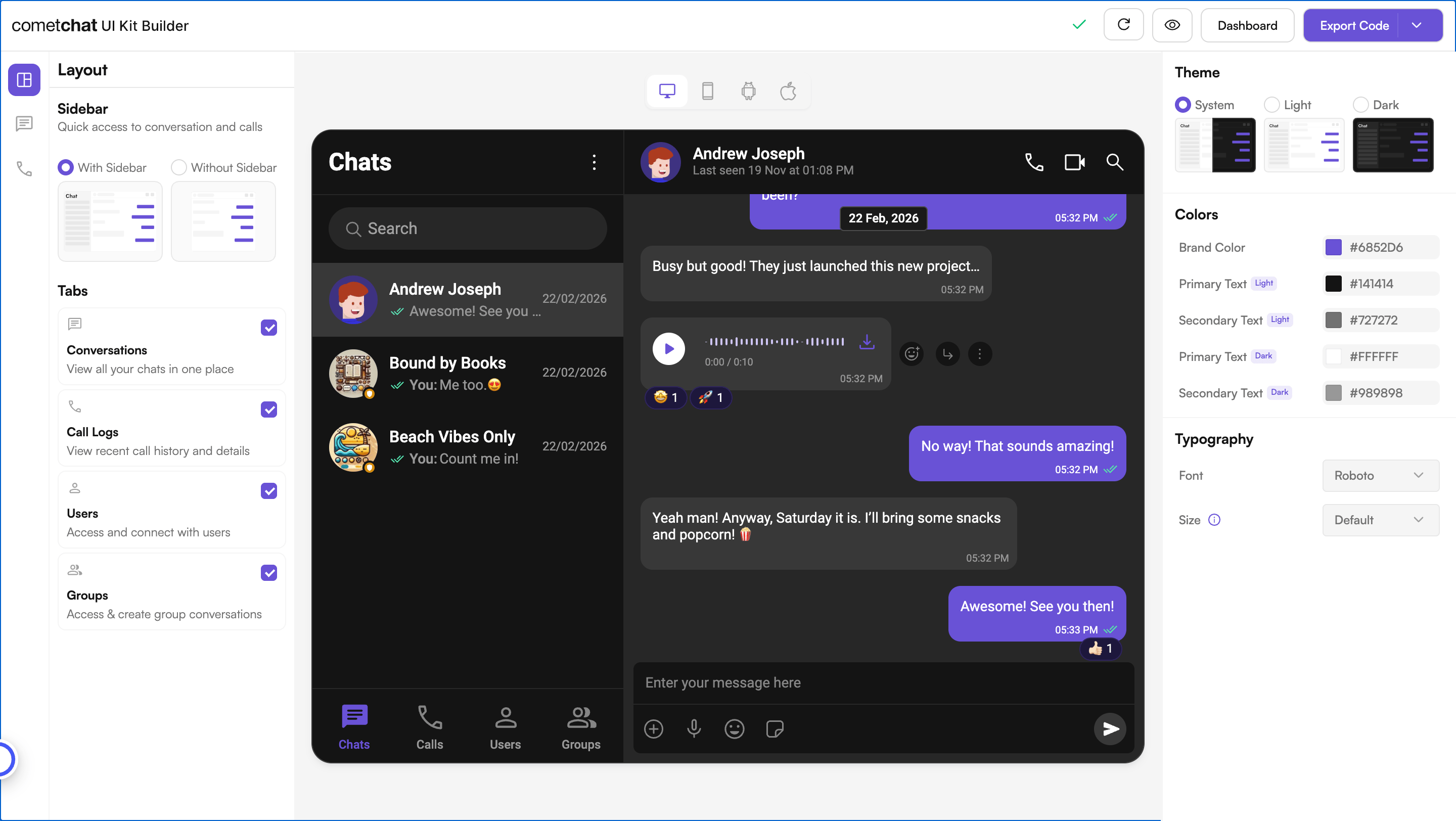
Customize your chat widget using the visual Widget Builder:- Configure layout — Toggle all the required features in the dashboard.
- Toggle features — Turn chat and calling features on and off from the builder interface.
- Themes — Select between system, light, and dark themes. Choose custom colors and typography.
2. Get Embed Code
Once configured, get the embed code snippet for your widget.- Click on Get Embedded Code
- Note your app credentials (App ID, Auth Key, Region, Variant ID)
- Copy the code snippet
What these credentials mean
3. Integrate
Add the embed code to your Webflow website and go live.- Add a custom code embed — In the Webflow Designer, add an Embed element to your page
- Paste the code snippet into the Embed element
- Configure credentials — Set your App ID, Region, and Auth Key in the snippet
- Authenticate users — Choose a sign-in mode so CometChat knows who each visitor is (see Authenticating users below)
- Launch — Publish your Webflow site and the chat widget is live
Follow the full Integration Guide
Step-by-step instructions for embedding the Widget Builder into your Webflow website
Authenticating users
Every person in CometChat is identified by a UID (User ID) — a unique, unchangeable string such asuser_123, an email, or a member ID from your site. Before the widget can send or receive messages, it must log a user in. The embed snippet supports three sign-in modes, selected with the mode field in the widget config:
- Guest mode
- UID mode
- Auth token mode
mode: "guest" lets anyone chat without an account. CometChat assigns a temporary identity. Best for marketing pages, help centers, and demos.Webflow’s member-identity APIs (such as Memberstack) are owned by those platforms and are outside CometChat’s control. To map a logged-in member to a CometChat UID, consult that platform’s own documentation for the member object, then pass that ID as the
uid (UID mode) or use it server-side to mint an auth token. The Integration Guide shows a worked Memberstack example.Try Live Demo
Experience the CometChat Widget Builder in action:Launch Live Demo
Need Help?
Developer Community
Connect with other developers and get answers
Support Portal
Contact our support team for assistance
Related Resources
Authentication & User Management
Create users and issue server-generated auth tokens
JavaScript Chat SDK
Learn more about the CometChat JavaScript SDK
HTML Widget
Widget Builder for HTML websites
Squarespace Widget
Widget Builder for Squarespace websites