

Before you begin
- Set up the AI settings through the CometChat dashboard as detailed in the Overview section.
-
Navigate to Chat > Features, under AI User Copilot, enable Conversation Starter.
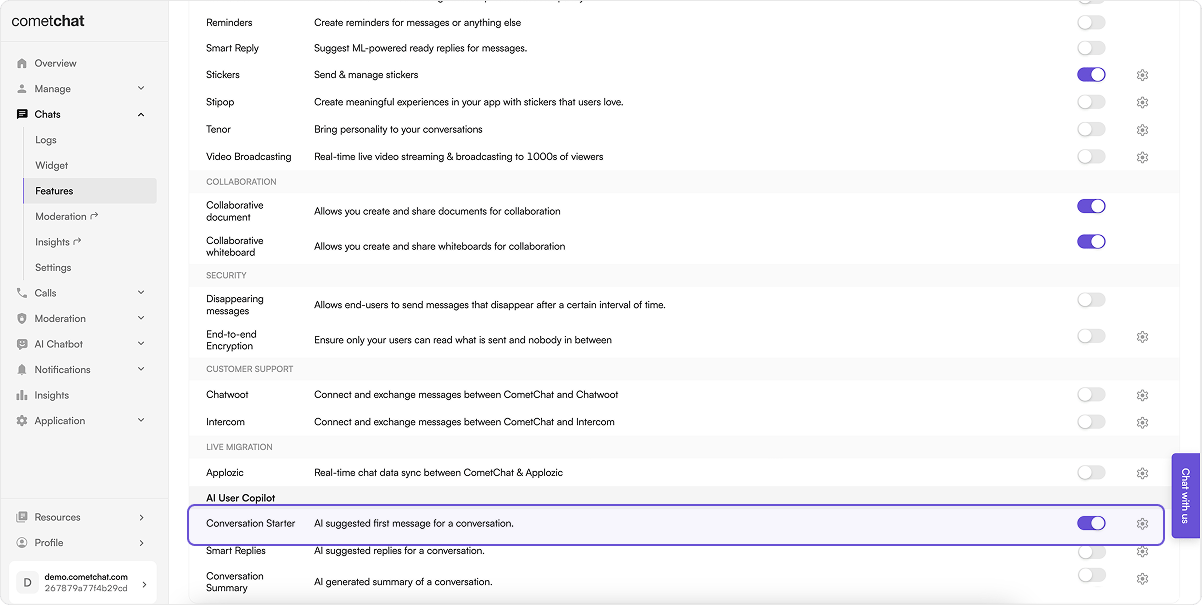
- Implement the chat functionality in your applications using CometChat’s v4 Chat SDKs.
How does it work?
CometChat AI analyzes the user’s tone and writing style by reviewing recent messages sent by that user within the application. The SDK includes a method for retrieving conversation starters in a chat. This method returns an array containing three potential starters for the conversation. The number of messages to be fetched to generate relevant conversation starter is configurable. By default the CometChat AI takes the latest1000 messages. This can be configured to specific timestamps as well.
While using any configuration mentioned above a maximum of only
1000 messages will be fetched.Implementation
SDKs
To implement Conversation Starter in the platform of your choice, you may utilize the following code samples:- JS/React Native/Ionic SDK
- Java
- Kotlin
- Dart
- Swift
UI Kits
Assuming the necessary prerequisites are met, Conversation Starter functions seamlessly starting from v4 of the Chat UI Kits. No additional code is required: once you enable Conversation Starter in the dashboard, the UI Kit renders the suggestions automatically. It is triggered when there are no messages in a conversation, and in the React UI Kit it appears inside the Message List component. For details on how each AI feature maps to a UI Kit component, see Smart Chat Features in the React UI Kit.Related
Smart Replies
AI-generated reply suggestions for an ongoing conversation.
Conversation Summary
A short recap of a long or unread conversation.
AI Settings
Configure your OpenAI model and key, then enable AI features.
React UI Kit AI Features
See which UI Kit component renders each AI feature.