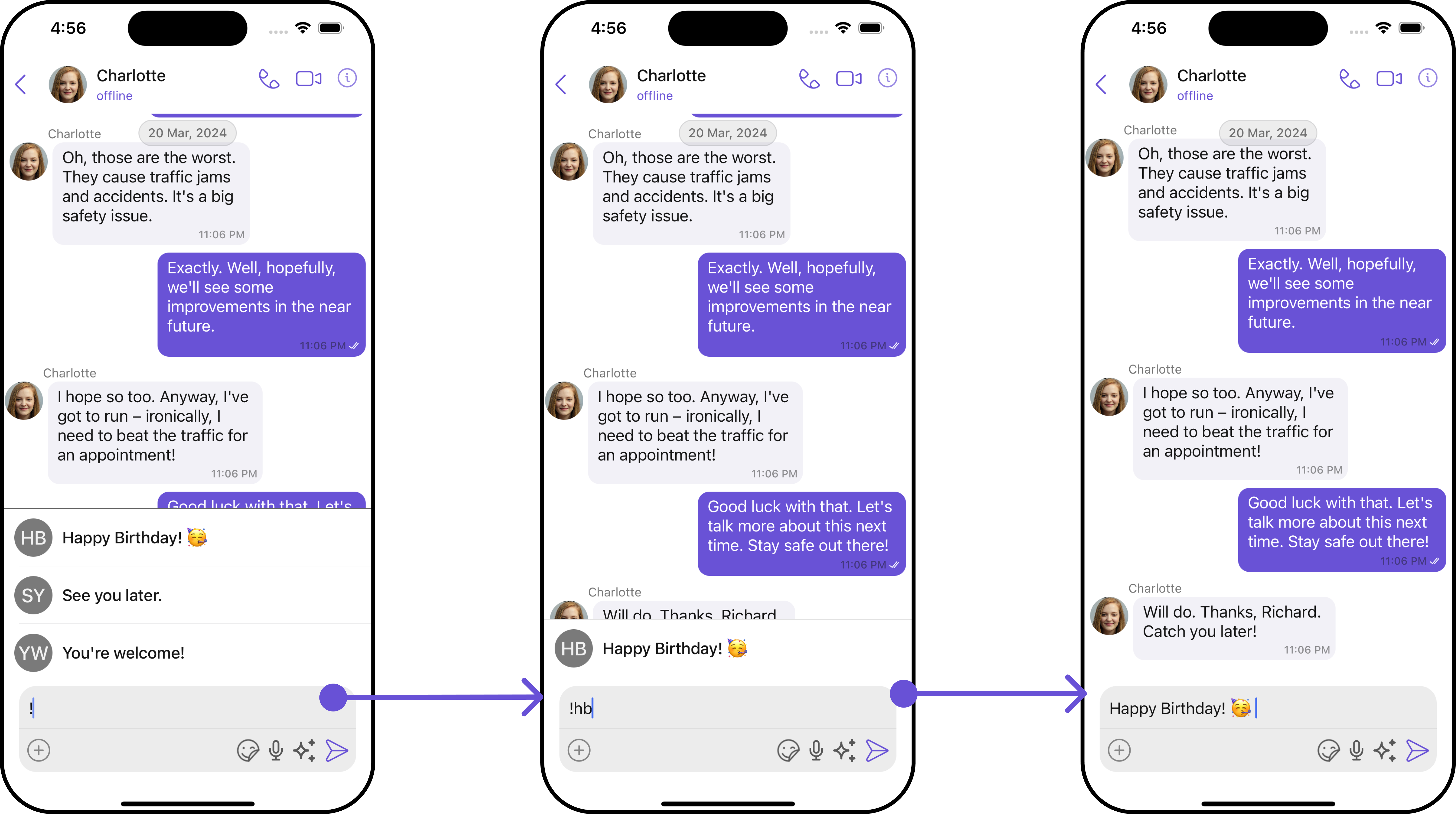
Introduction
The ShortCutFormatter class extends the CometChatTextFormatter class to provide a mechanism for handling shortcuts within messages. This guide will walk you through the process of using ShortCutFormatter to implement shortcut extensions in your CometChat application.Setup
- Create the ShortCutFormatter Class: Define the
ShortCutFormatterclass by extending theCometChatTextFormatterclass.
- Swift
- initializer: Sets the
trackingCharacterto ’!’ in the initializer of theShortcutFormatterclass
- Swift
- Prepare Regex: Set the regular expression for shortcut detection in the
getRegex()method ofShortcutFormatterclass.
- Swift
- Prepare TrackingCharacter: Define the
getTrackingCharacter()method to return ’!’ as the shortcut tracking character inShortcutFormatterclass.
- Swift
- Override Search Method: Override the
search()method to search for shortcuts based on the entered query.
- Swift
- Handle prepareMessageString: Implement the
prepareMessageString()method to convert the base chat message into an attributed string for display in theShortcutFormatterclass.
- Swift
- Handle onTextTapped: Override the
onTextTapped()method if needed.
- Swift
- Below is an example of how a
ShortcutFormatterSwift file might look:
ShortcutFormatter.swift
Usage
- Initialization: Initialize an instance of
ShortCutFormatterin your application.
- Swift
- Integration: Integrating the
ShortCutFormatterinto your CometChat application involves incorporating it within your project to handle message shortcuts. If you’re utilizing the CometChatConversationsWithMessages component, you can seamlessly integrate the ShortCutFormatter to manage shortcut functionalities within your application.
- Your final integration code should look like this:
- Swift
Example