

CometChatSettings.ts file handles basic feature toggles. For deeper customizations, modify component props or source code directly.
The exported code uses the React UI Kit, so every
React UI Kit component, prop, and customization layer applies here. In
Next.js, any file that renders these components or calls the CometChat SDK
must be a Client Component — add
"use client"; as the first line, and keep
it inside the SSR-disabled boundary set up in the
Integration Guide. The chatUser variable
in the examples below is a CometChat.User you fetch from the SDK, as shown
in the next section.Getting a chatUser Reference
Several examples below pass a chatUser prop. This is a CometChat.User object
you fetch from the SDK after login. Fetch it in a Client Component with
CometChat.getUser():
chatUser is defined, for example
chatUser ? <CometChatMessageList user={chatUser} /> : null. The same applies
to a group prop fetched with CometChat.getGroup().
App-Level Customizations
These ready-to-use props on theCometChatApp component let you quickly adjust common behaviors without modifying any internal components.
Group Action Messages
Control the visibility of group action messages using theshowGroupActionMessages prop:
true(default) — Group action messages are visiblefalse— Group action messages are hidden
Auto Open First Item
Control whether the first item in lists automatically opens on render using theautoOpenFirstItem prop:
true(default) — The first item in conversation list, user list, or group list opens automatically on first renderfalse— No item opens until the user clicks on one
Component-Level Customizations
For more advanced customizations tailored to your app’s needs, you can modify individual UI Kit components directly.How to Customize
- Find the component in the UI Kit Components Overview
- Check available props and customization options
- Update props or edit the component source code
Custom Date Format
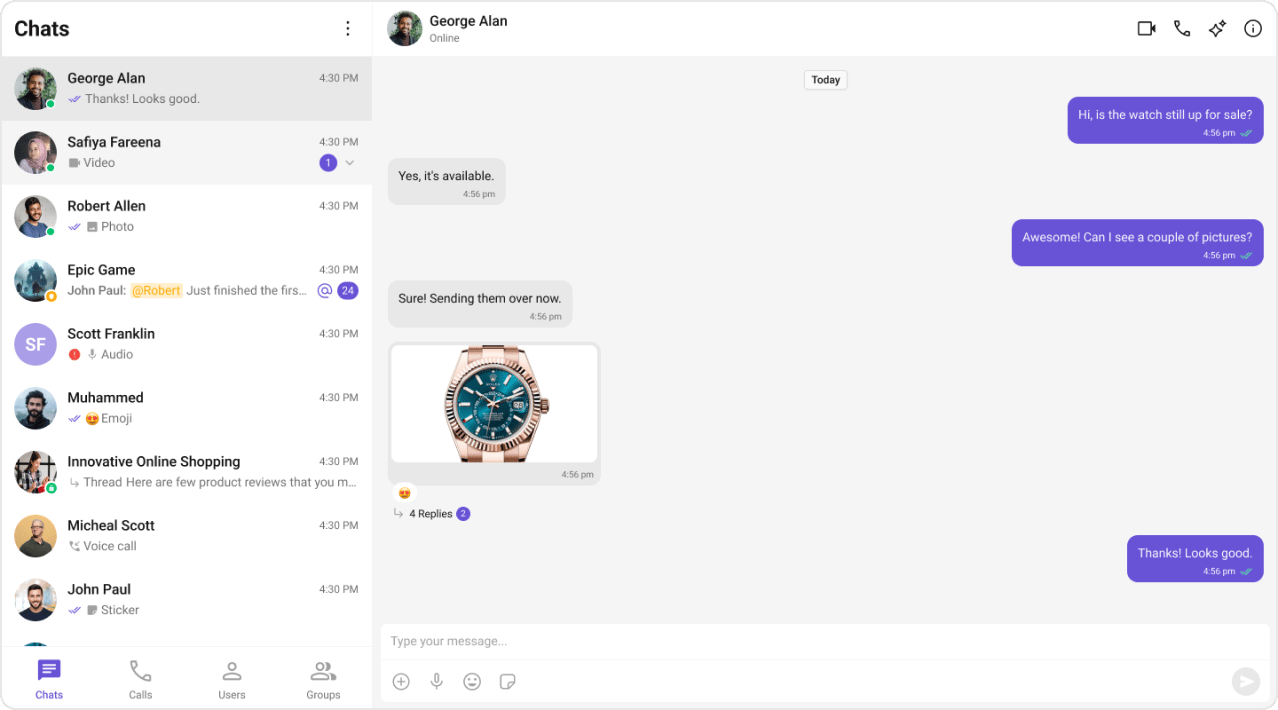
Customize how sticky date headers appear in the message list. Component: Message List →stickyDateTimeFormat
Custom Conversation Subtitle
Show online status or member count instead of the default last message preview. Component: Conversations →subtitleView
Custom Send Button
Replace the default send button with your brand’s icon. Component: Message Composer →sendButtonView
Customization Layers
Component props are one of several ways to tailor the exported chat. Each layer operates independently, so you can combine them:Next Steps
UI Kit Builder Settings
Configure feature toggles and behavior
Components Overview
Explore all available UI components
Message Template
Customize how message bubbles render
Theming
Customize colors, typography, and styling
CSS Variables
Override
--cometchat-* design tokensLocalization
Add multi-language support