

Prerequisites
Before running this project, make sure you have:- Flutter SDK (stable channel) with Dart 3+
- macOS, Windows, or Linux with Flutter tooling (Android Studio, VS Code, or IntelliJ)
- For iOS builds: Xcode, CocoaPods, and an iOS 13+ simulator or device
- For Android builds: Android Studio and an Android 5.0 (API 21)+ emulator or device
- Internet connection (required for CometChat services)
Platform Requirements
iOS
Update yourPodfile and set the iOS platform to 13.0 or higher:
Android
Change thendkVersion and minSdk in your android/app/build.gradle.kts:
Complete Integration Workflow
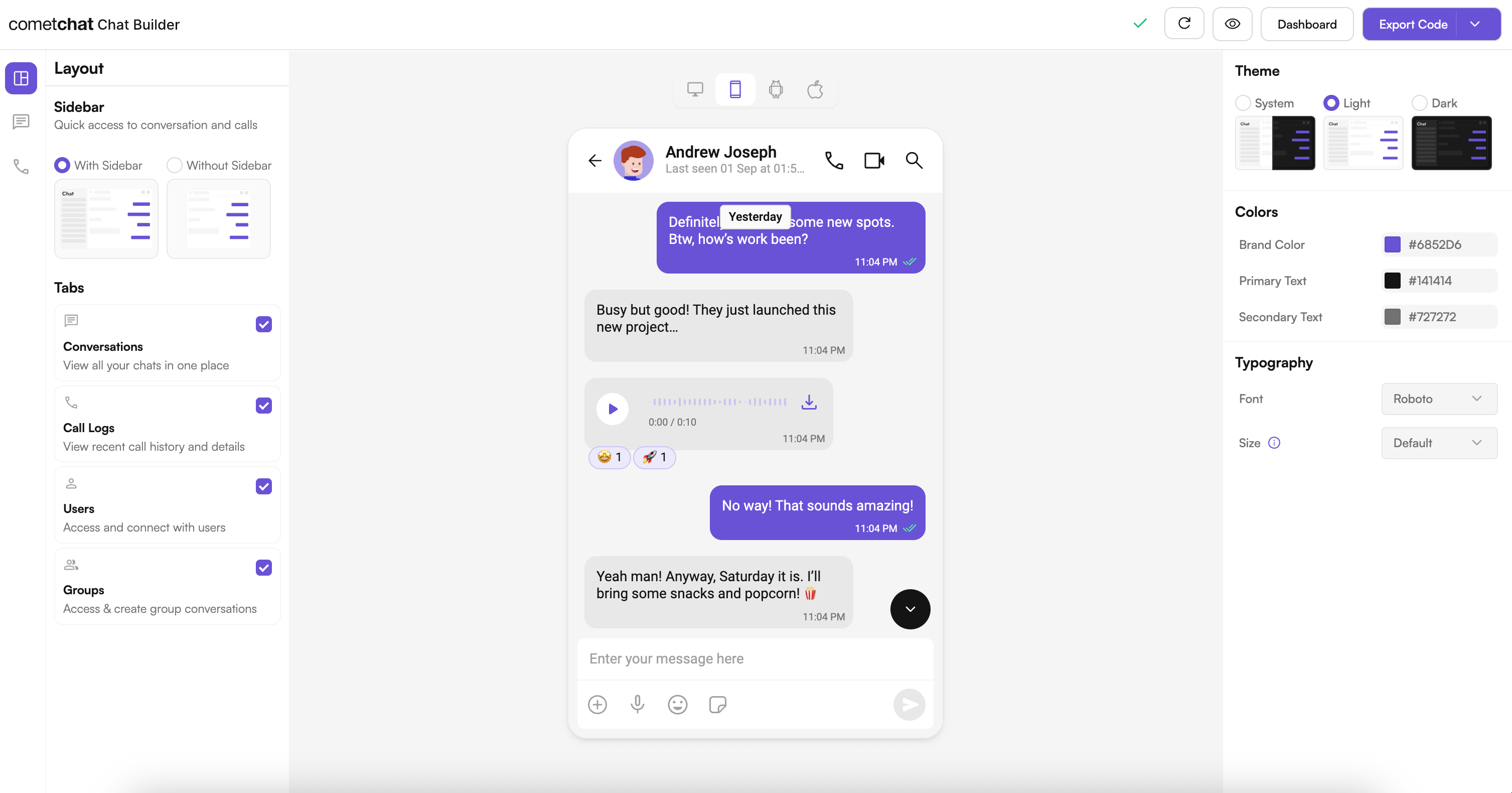
- Design Your Chat Experience - Use the UI Kit Builder to customize layouts, features, and styling.
- Review and Export - Review which features will be enabled in your Dashboard, toggle them on/off, and download the generated code package.
- Preview Customizations - Optionally, preview the chat experience before integrating it into your project.
- Integration - Integrate into your existing application using the Module Import method.
- Customize Further - Explore advanced customization options to tailor the chat experience.
Launch the UI Kit Builder
- Log in to your CometChat Dashboard.
- Select your application from the list.
- Navigate to Integrate → Flutter → Launch UI Kit Builder.
Integration with CometChat UI Kit Builder
Follow these steps to wire the Builder output into your existing Flutter app.Step 1: Download the Builder Package
Download the Chat Builder app from the CometChat Dashboard. Inside you will find achat_builder module, assets, and helper utilities.
Step 2: Add the Builder Module to Your Project
Copy thechat_builder project directory and paste it in your app’s root directory (next to your lib, ios, and android folders).
Step 3: Copy Builder Assets
Copy all the contents from the assets directory of thechat_builder and add it to your project assets:
- Source:
chat_builder/assets/ - Destination:
assets/
Step 4: Update pubspec.yaml
Point to the local Builder module and register the assets and fonts supplied by the export:
Ensure indentation is consistent—Flutter’s asset and font declarations are whitespace sensitive.
Step 5: Install Dependencies
Run the following commands at the root of your project:Step 6: Initialize Builder Settings
In the main file of your project, add the following lines beforerunApp():
Step 7: Authenticate Your User
The exported module uses the standard CometChat Flutter UI Kit underneath, so the SDK must be initialized and a user logged in before chat screens can load. The Builder reads yourAPP_ID, AUTH_KEY, and REGION from chat_builder/lib/utils/app_constants.dart (see Directory Structure).
You have two ways to get a logged-in user:
- Let the Builder handle login.
ChatBuilder.launchBuilder(context)opens the Builder’s own flow, which includes a login screen when no user is signed in (see Step 8). This is the fastest path for prototyping. - Authenticate from your own app. If your app already manages users, initialize and log in with the standard UI Kit APIs before opening the chat screens directly.
Step 8: Launch UI Kit Builder Screens
Use theChatBuilder APIs to open preconfigured experiences.
If CometChat is not initialized or user is not logged in:
Step 9: Refresh Settings After Updates
Whenever you export a new Builder configuration, replace the generated JSON, fonts, and assets in your project, then rerunflutter pub get to pick up changes.
Light & Dark Theme
The Builder exports atheme value in cometchat-builder-settings.json that controls the chat UI’s appearance:
To switch modes, change the
theme value in the exported settings JSON (or pick it in the Builder and re-export), then rerun flutter pub get. Brand and text colors for each mode are configured alongside it. See UI Kit Builder Settings → Style for the full color and typography schema.
For theming beyond what the Builder exposes—custom color palettes, typography, spacing tokens, and ThemeExtension—use the UI Kit’s theming system directly. See Theming.
Enable Features in CometChat Dashboard
If your app needs any of these features, enable them from your Dashboard:- Stickers
- Polls
- Collaborative whiteboard
- Collaborative document
- Message translation
- AI User Copilot: Conversation starter, Conversation summary, Smart reply
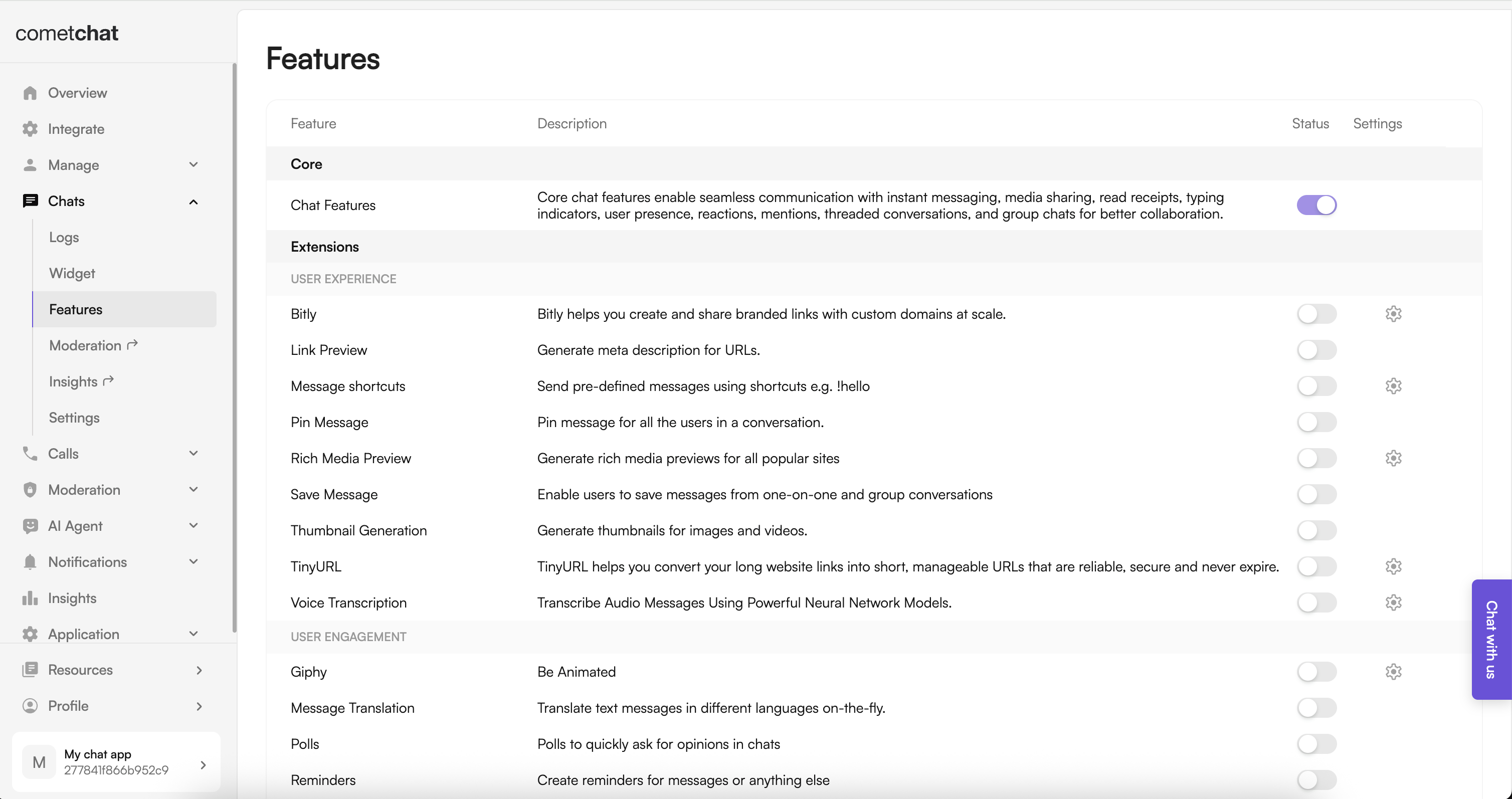
- Log in to the Dashboard.
- Select your app.
- Navigate to Chat → Features.
- Toggle ON the required features and Save.
Important Guidelines for Changes
Functional Changes:
For enabling or disabling features and adjusting configurations, update the
BuilderSettingsHelper or modify the configuration JSON. This controls all feature flags and configuration constants.UI and Theme-related Changes:
For any updates related to UI, such as colors, fonts, and styles, modify the theme configuration in the Builder or update the
pubspec.yaml font definitions.Troubleshooting
Builder Package Not Found
- Confirm the
chat_builderdirectory path inpubspec.yamlis correct - Ensure the module is at the root level of your project
Assets Missing at Runtime
- Verify the asset paths in
pubspec.yaml - Rerun
flutter pub getafter any changes
iOS Build Issues
- Make sure you ran
pod installinside theiosdirectory after adding the new dependency - Check that the iOS platform version in
Podfileis 13.0 or higher
Undefined Symbols
- Reimport or regenerate the
BuilderSettingsHelperif package paths changed - Clean and rebuild:
flutter clean && flutter pub get
Next Steps
Builder Settings
Understand the settings file and feature toggles.
Customizations
Adjust component props, behavior, and UI elements.
Directory Structure
See how the exported code is organized.
UI Kit Theme
Customize colors, typography, and styling to match your brand.
Message Templates
Customize message bubble content, headers, footers, and status views.
Component View Slots
Replace specific regions of a component’s UI with your own views.