> ## Documentation Index
> Fetch the complete documentation index at: https://cometchat-22654f5b-docs-audit-content-webhooks.mintlify.site/llms.txt
> Use this file to discover all available pages before exploring further.
# AI Assistant Chat History
> Display conversation history between users and AI assistants with CometChatAIAssistantChatHistory component in React Native UI Kit.
| Field | Value |
| ------------- | ------------------------------------------------------------------------------------------------------ |
| Import | `import { CometChatAIAssistantChatHistory } from "@cometchat/chat-uikit-react-native";` |
| Required prop | `user` (with `@agentic` role) or `group` |
| Key actions | `onMessageClicked`, `onNewChatButtonClick`, `onClose`, `onError` |
| Styling | `style` prop accepts `ChatHistoryStyle` object |
| Custom views | `LoadingStateView` for custom loading indicator |
| Prerequisite | AI Assistant feature must be enabled in [CometChat Dashboard](https://app.cometchat.com/) |
| Related | [Message List](/ui-kit/react-native/message-list), [Conversations](/ui-kit/react-native/conversations) |
## Overview
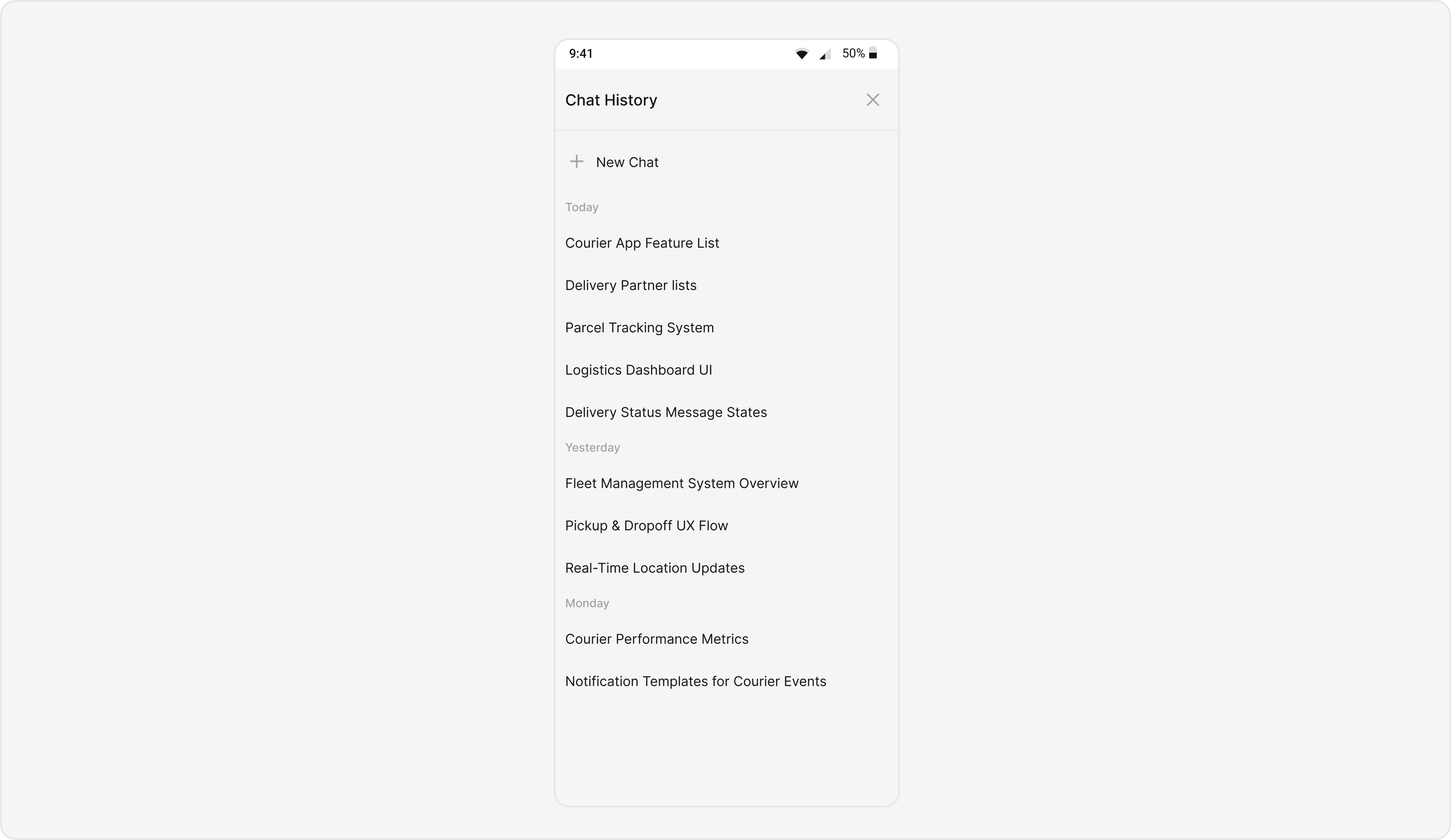
`CometChatAIAssistantChatHistory` is a pre-built user interface element designed to display the conversation history between users and an AI assistant within a chat application. It provides a structured and visually appealing way to present past interactions, making it easy for users to review previous messages and context.
 ***
## Usage
### Integration
`CometChatAIAssistantChatHistory`, as a Composite Component, offers flexible integration options, allowing it to be launched directly via button clicks or any user-triggered action.
The following code snippet exemplifies how you can seamlessly integrate the AI Assistant Chat History component into your application.
```ts theme={null}
import React from 'react';
import { View } from 'react-native';
import { CometChatAIAssistantChatHistory } from '@cometchat/chat-uikit-react-native';
import { CometChat } from '@cometchat/chat-sdk-react-native';
const YourComponent = () => {
const user = new CometChat.User({
uid: "userId",
name: "User Name",
role: "@agentic" // User role must be @agentic to use AI Assistant features
});
return (
{
// Handle close action
}}
onMessageClicked={(message) => {
// Handle message click
}}
onNewChatButtonClick={() => {
// Handle new chat button click
}}
onError={(error) => {
// Handle error
}}
/>
);
};
```
If you're defining the User within the component, you'll need to ensure the user has the appropriate role set to use AI Assistant features.
***
### Actions
[Actions](/ui-kit/react-native/components-overview#actions) dictate how a component functions. They are divided into two types: Predefined and User-defined. You can override either type, allowing you to tailor the behavior of the component to fit your specific needs.
##### onMessageClicked
Function invoked when a chat history item is clicked, typically used to open an AI assistant chat screen.
```ts theme={null}
import { CometChatAIAssistantChatHistory } from "@cometchat/chat-uikit-react-native";
import { CometChat } from "@cometchat/chat-sdk-react-native";
{
// Handle message click
console.log('Message clicked:', message);
}}
/>
```
***
##### onNewChatButtonClick
Function triggered when the new chat button is clicked, typically used to start a new conversation with the AI assistant.
```ts theme={null}
{
// Handle new chat button click
console.log('Starting new chat');
}}
/>
```
***
##### onClose
Function activated when the close button is clicked, usually to exit the chat history view.
```ts theme={null}
{
// Handle close action
console.log('Closing chat history');
}}
/>
```
***
##### onError
Function invoked when an error occurs during message fetching or any other operation.
```ts theme={null}
import { CometChatAIAssistantChatHistory } from "@cometchat/chat-uikit-react-native";
import { CometChat } from "@cometchat/chat-sdk-react-native";
{
// Handle error
console.error('Chat history error:', error);
}}
/>
```
## Customization
To fit your app's design requirements, you can customize the appearance of the AI Assistant Chat History component. These customizations are categorized into two main areas: Style and Functionality.
### Style
Using Style you can customize the look and feel of the component in your app. These parameters typically control elements such as the color, size, shape, and fonts used within the component.
```ts theme={null}
import { ChatHistoryStyle } from '@cometchat/chat-uikit-react-native';
const customStyle: Partial = {
containerStyle: {
backgroundColor: '#FFFAF6',
},
headerStyle: {
backgroundColor: '#FFFAF6',
},
headerTitleStyle: {
color: '#000000',
fontSize: 18,
fontWeight: 'bold',
},
newChatButtonStyle: {
backgroundColor: '#FFFAF6',
},
newChatTextStyle: {
color: '#000000',
fontSize: 16,
},
sectionHeaderStyle: {
backgroundColor: '#FFFAF6',
},
sectionHeaderTextStyle: {
color: '#666666',
fontSize: 14,
},
messageItemStyle: {
backgroundColor: '#FFFFFF',
},
messageTextStyle: {
color: '#000000',
fontSize: 16,
},
};
```
### Functionality
These are a set of small functional customizations that allow you to fine-tune the overall experience of the component. With these, you can control various aspects of the component's behavior.
Below is a list of customizations along with corresponding code snippets:
| Props | Description | Code |
| ---------------- | ------------------------------------------------------------------------------------------------------------------------------------------------ | ----------------------------------------------- |
| user | Sets the user whose chat histories with the AI assistant need to be fetched. This is a required property for the component to function properly. | `user={userObject}` |
| group | Sets the group whose chat histories with the AI assistant need to be fetched. Can be used instead of user for group chats. | `group={groupObject}` |
| LoadingStateView | Custom loading state view component to be displayed while fetching chat history | `LoadingStateView={() => }` |
***
## Next Steps
Display the list of messages in a conversation
Overview of all AI-powered features
Display and manage the list of recent chats
Customize the appearance of UI Kit components
***
## Usage
### Integration
`CometChatAIAssistantChatHistory`, as a Composite Component, offers flexible integration options, allowing it to be launched directly via button clicks or any user-triggered action.
The following code snippet exemplifies how you can seamlessly integrate the AI Assistant Chat History component into your application.
```ts theme={null}
import React from 'react';
import { View } from 'react-native';
import { CometChatAIAssistantChatHistory } from '@cometchat/chat-uikit-react-native';
import { CometChat } from '@cometchat/chat-sdk-react-native';
const YourComponent = () => {
const user = new CometChat.User({
uid: "userId",
name: "User Name",
role: "@agentic" // User role must be @agentic to use AI Assistant features
});
return (
{
// Handle close action
}}
onMessageClicked={(message) => {
// Handle message click
}}
onNewChatButtonClick={() => {
// Handle new chat button click
}}
onError={(error) => {
// Handle error
}}
/>
);
};
```
If you're defining the User within the component, you'll need to ensure the user has the appropriate role set to use AI Assistant features.
***
### Actions
[Actions](/ui-kit/react-native/components-overview#actions) dictate how a component functions. They are divided into two types: Predefined and User-defined. You can override either type, allowing you to tailor the behavior of the component to fit your specific needs.
##### onMessageClicked
Function invoked when a chat history item is clicked, typically used to open an AI assistant chat screen.
```ts theme={null}
import { CometChatAIAssistantChatHistory } from "@cometchat/chat-uikit-react-native";
import { CometChat } from "@cometchat/chat-sdk-react-native";
{
// Handle message click
console.log('Message clicked:', message);
}}
/>
```
***
##### onNewChatButtonClick
Function triggered when the new chat button is clicked, typically used to start a new conversation with the AI assistant.
```ts theme={null}
{
// Handle new chat button click
console.log('Starting new chat');
}}
/>
```
***
##### onClose
Function activated when the close button is clicked, usually to exit the chat history view.
```ts theme={null}
{
// Handle close action
console.log('Closing chat history');
}}
/>
```
***
##### onError
Function invoked when an error occurs during message fetching or any other operation.
```ts theme={null}
import { CometChatAIAssistantChatHistory } from "@cometchat/chat-uikit-react-native";
import { CometChat } from "@cometchat/chat-sdk-react-native";
{
// Handle error
console.error('Chat history error:', error);
}}
/>
```
## Customization
To fit your app's design requirements, you can customize the appearance of the AI Assistant Chat History component. These customizations are categorized into two main areas: Style and Functionality.
### Style
Using Style you can customize the look and feel of the component in your app. These parameters typically control elements such as the color, size, shape, and fonts used within the component.
```ts theme={null}
import { ChatHistoryStyle } from '@cometchat/chat-uikit-react-native';
const customStyle: Partial = {
containerStyle: {
backgroundColor: '#FFFAF6',
},
headerStyle: {
backgroundColor: '#FFFAF6',
},
headerTitleStyle: {
color: '#000000',
fontSize: 18,
fontWeight: 'bold',
},
newChatButtonStyle: {
backgroundColor: '#FFFAF6',
},
newChatTextStyle: {
color: '#000000',
fontSize: 16,
},
sectionHeaderStyle: {
backgroundColor: '#FFFAF6',
},
sectionHeaderTextStyle: {
color: '#666666',
fontSize: 14,
},
messageItemStyle: {
backgroundColor: '#FFFFFF',
},
messageTextStyle: {
color: '#000000',
fontSize: 16,
},
};
```
### Functionality
These are a set of small functional customizations that allow you to fine-tune the overall experience of the component. With these, you can control various aspects of the component's behavior.
Below is a list of customizations along with corresponding code snippets:
| Props | Description | Code |
| ---------------- | ------------------------------------------------------------------------------------------------------------------------------------------------ | ----------------------------------------------- |
| user | Sets the user whose chat histories with the AI assistant need to be fetched. This is a required property for the component to function properly. | `user={userObject}` |
| group | Sets the group whose chat histories with the AI assistant need to be fetched. Can be used instead of user for group chats. | `group={groupObject}` |
| LoadingStateView | Custom loading state view component to be displayed while fetching chat history | `LoadingStateView={() => }` |
***
## Next Steps
Display the list of messages in a conversation
Overview of all AI-powered features
Display and manage the list of recent chats
Customize the appearance of UI Kit components