> ## Documentation Index
> Fetch the complete documentation index at: https://cometchat-22654f5b-docs-audit-content-webhooks.mintlify.site/llms.txt
> Use this file to discover all available pages before exploring further.
# Overview
> Overview of Overview in CometChat.
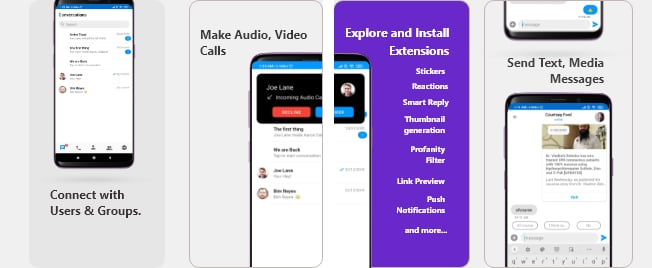
The CometChat Kotlin Chat UI Kit lets Android developers integrate fully featured text chat & voice/video calling into mobile apps seamlessly.
 Improvements in v3.0
* Faster connection & response times
* Higher rate limits
* Supports up to 100K users in a group
* Unlimited groups
* Support for Transient Messages
* Real-time user & group members count And more!
The Kotlin Chat UI Kit’s fully customizable UI components simplify the process of integrating text chat and voice/video calling features to your Android mobile application.
Follow the steps mentioned in the `README.md` file.
Kindly, click on below button to download our Android Kotlin Chat UI Kit.
[Kotlin Chat UI Kit](https://github.com/cometchat/cometchat-uikit-android/tree/v3)
[View on Github](https://github.com/cometchat/cometchat-uikit-android/tree/v3)
Import the app into Android Studio and follow the steps mentioned in the `README.md` file.
Kindly, click on below button to download our Java Sample App.
[Kotlin Sample App](https://github.com/cometchat-pro/android-kotlin-chat-app/archive/v3.zip)
[View on Github](https://github.com/cometchat-pro/android-kotlin-chat-app/tree/v3)
## **Prerequisites** ⭐
Before you begin, ensure you have met the following requirements:
✅ You have Android Studio installed on your machine.
✅ You have an Android Device or Emulator with Android Version 6.0 or above.
✅ You have read [Key Concepts](/ui-kit/kotlin/key-concepts).
## **Installing Android Kotlin Chat UI Kit**
### **Setup** 🔧
To install Android Kotlin UI Kit, you need to first register on CometChat Dashboard. [Click here to sign up.](https://app.cometchat.com/login)
#### **Get your Application Keys** 🔑
* Create a new app
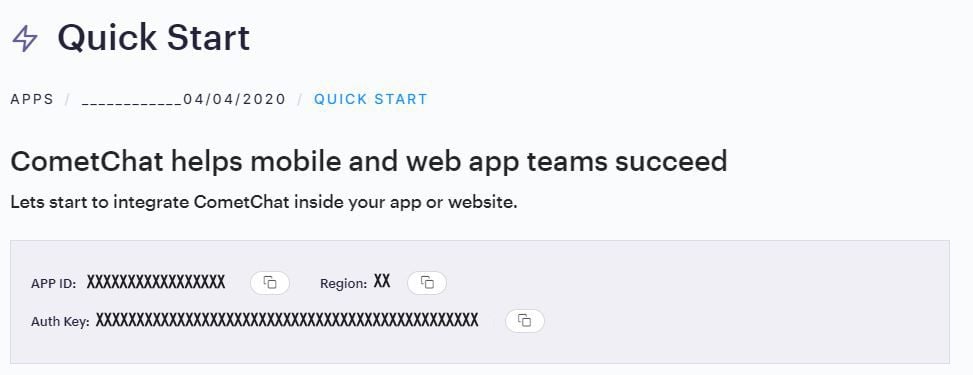
* Head over to the Quick Start or API & Auth Keys section and note the App ID, Auth Key, and Region.
Improvements in v3.0
* Faster connection & response times
* Higher rate limits
* Supports up to 100K users in a group
* Unlimited groups
* Support for Transient Messages
* Real-time user & group members count And more!
The Kotlin Chat UI Kit’s fully customizable UI components simplify the process of integrating text chat and voice/video calling features to your Android mobile application.
Follow the steps mentioned in the `README.md` file.
Kindly, click on below button to download our Android Kotlin Chat UI Kit.
[Kotlin Chat UI Kit](https://github.com/cometchat/cometchat-uikit-android/tree/v3)
[View on Github](https://github.com/cometchat/cometchat-uikit-android/tree/v3)
Import the app into Android Studio and follow the steps mentioned in the `README.md` file.
Kindly, click on below button to download our Java Sample App.
[Kotlin Sample App](https://github.com/cometchat-pro/android-kotlin-chat-app/archive/v3.zip)
[View on Github](https://github.com/cometchat-pro/android-kotlin-chat-app/tree/v3)
## **Prerequisites** ⭐
Before you begin, ensure you have met the following requirements:
✅ You have Android Studio installed on your machine.
✅ You have an Android Device or Emulator with Android Version 6.0 or above.
✅ You have read [Key Concepts](/ui-kit/kotlin/key-concepts).
## **Installing Android Kotlin Chat UI Kit**
### **Setup** 🔧
To install Android Kotlin UI Kit, you need to first register on CometChat Dashboard. [Click here to sign up.](https://app.cometchat.com/login)
#### **Get your Application Keys** 🔑
* Create a new app
* Head over to the Quick Start or API & Auth Keys section and note the App ID, Auth Key, and Region.
 #### **Add the CometChat Dependency**
First, add the repository URL to the **project level**`build.gradle` file in the repositories block under the `allprojects` section.
```gradle theme={null}
allprojects {
repositories {
maven {
url "https://dl.cloudsmith.io/public/cometchat/cometchat-pro-android/maven/"
}
}
}
```
Open the **app level** `build.gradle` file and
1. Add the below two line in the `dependencies` section.
```gradle theme={null}
dependencies {
implementation 'com.cometchat:pro-android-chat-sdk:3.0.0'
/*v2.4+ onwards, Voice & Video Calling functionality has been
moved to a separate library. In case you plan to use the calling feature,
please add the Calling dependency*/
implementation 'com.cometchat:pro-android-calls-sdk:2.1.0'
}
```
2. Add the below lines `android` section
```gradle theme={null}
android {
compileOptions {
sourceCompatibility JavaVersion.VERSION_1_8
targetCompatibility JavaVersion.VERSION_1_8
}
}
```
You can refer to the below link for instructions on how to do so:
**[📝 Add CometChat Dependency](/sdk/android/setup)** `Documentation`
### **Configure CometChat inside your app**
#### **Initialize CometChat** 🌟
The `init()` method initializes the settings required for CometChat. Please make sure to call this method before calling any other methods from CometChat SDK.
```kotlin theme={null}
private val appID = "APP_ID"
private val region = "REGION"
val appSettings = AppSettingsBuilder().subscribePresenceForAllUsers().setRegion(region).build()
CometChat.init(this, appID, appSettings, object : CallbackListener() {
override fun onSuccess(successMessage: String) {
Log.d(TAG, "Initialization completed successfully")
}
override fun onError(e: CometChatException) {
Log.d(TAG, "Initialization failed with exception: "+e.message)
}
})
```
Make sure you replace the APP\_ID with your CometChat APP ID and REGION with your app's REGION in the above code.
#### **Login User** 👤
The `login()` method returns the User object containing all the information of the logged-in user.
```kotlin theme={null}
private val UID = "cometchat-uid-1" // Replace with the UID of the user to login
private val AUTH_KEY = "Enter AUTH_KEY" // Replace with your App Auth Key
CometChat.login(UID, AUTH_KEY, object : CallbackListener() {
override fun onSuccess(user: User?) {
Log.d(TAG, "Login Successful : "+user.toString())
}
override fun onError(e: CometChatException) {
Log.d(TAG, "Login failed with exception: " + e.message);
}
})
```
Make sure you replace the AUTH\_KEY with your CometChat AUTH Key in the above code. We have setup 5 users for testing having UIDs: cometchat-uid-1, cometchat-uid-2, cometchat-uid-3, cometchat-uid-4 and cometchat-uid-5.
### **Add the Android Kotlin UI Kit Library**
To integrate the UI Kit, please follow the steps below:
* Clone the UI Kit-Kotlin Library from the [android-kotlin-chat-ui-kit](https://github.com/cometchat/cometchat-uikit-android/tree/v3) repository
[Kotlin Download Kotlin UI Kit Library](https://github.com/cometchat/cometchat-uikit-android/tree/v3)
* Import `uikit-kotlin` Module from Module Settings
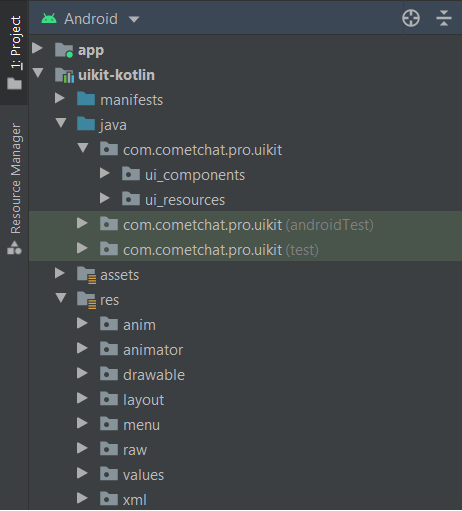
* If the Library is added successfully, it will look like mentioned in the below image.
#### **Add the CometChat Dependency**
First, add the repository URL to the **project level**`build.gradle` file in the repositories block under the `allprojects` section.
```gradle theme={null}
allprojects {
repositories {
maven {
url "https://dl.cloudsmith.io/public/cometchat/cometchat-pro-android/maven/"
}
}
}
```
Open the **app level** `build.gradle` file and
1. Add the below two line in the `dependencies` section.
```gradle theme={null}
dependencies {
implementation 'com.cometchat:pro-android-chat-sdk:3.0.0'
/*v2.4+ onwards, Voice & Video Calling functionality has been
moved to a separate library. In case you plan to use the calling feature,
please add the Calling dependency*/
implementation 'com.cometchat:pro-android-calls-sdk:2.1.0'
}
```
2. Add the below lines `android` section
```gradle theme={null}
android {
compileOptions {
sourceCompatibility JavaVersion.VERSION_1_8
targetCompatibility JavaVersion.VERSION_1_8
}
}
```
You can refer to the below link for instructions on how to do so:
**[📝 Add CometChat Dependency](/sdk/android/setup)** `Documentation`
### **Configure CometChat inside your app**
#### **Initialize CometChat** 🌟
The `init()` method initializes the settings required for CometChat. Please make sure to call this method before calling any other methods from CometChat SDK.
```kotlin theme={null}
private val appID = "APP_ID"
private val region = "REGION"
val appSettings = AppSettingsBuilder().subscribePresenceForAllUsers().setRegion(region).build()
CometChat.init(this, appID, appSettings, object : CallbackListener() {
override fun onSuccess(successMessage: String) {
Log.d(TAG, "Initialization completed successfully")
}
override fun onError(e: CometChatException) {
Log.d(TAG, "Initialization failed with exception: "+e.message)
}
})
```
Make sure you replace the APP\_ID with your CometChat APP ID and REGION with your app's REGION in the above code.
#### **Login User** 👤
The `login()` method returns the User object containing all the information of the logged-in user.
```kotlin theme={null}
private val UID = "cometchat-uid-1" // Replace with the UID of the user to login
private val AUTH_KEY = "Enter AUTH_KEY" // Replace with your App Auth Key
CometChat.login(UID, AUTH_KEY, object : CallbackListener() {
override fun onSuccess(user: User?) {
Log.d(TAG, "Login Successful : "+user.toString())
}
override fun onError(e: CometChatException) {
Log.d(TAG, "Login failed with exception: " + e.message);
}
})
```
Make sure you replace the AUTH\_KEY with your CometChat AUTH Key in the above code. We have setup 5 users for testing having UIDs: cometchat-uid-1, cometchat-uid-2, cometchat-uid-3, cometchat-uid-4 and cometchat-uid-5.
### **Add the Android Kotlin UI Kit Library**
To integrate the UI Kit, please follow the steps below:
* Clone the UI Kit-Kotlin Library from the [android-kotlin-chat-ui-kit](https://github.com/cometchat/cometchat-uikit-android/tree/v3) repository
[Kotlin Download Kotlin UI Kit Library](https://github.com/cometchat/cometchat-uikit-android/tree/v3)
* Import `uikit-kotlin` Module from Module Settings
* If the Library is added successfully, it will look like mentioned in the below image.
 ### **Configure Kotlin UI Kit Library**
To use UI Kit you have to add Material Design support in your app as the UI Kit uses Material Design Components.
* Add Material Design Dependency in build.gradle
```gradle theme={null}
dependencies {
implementation 'com.google.android.material:material:'
}
```
* Make sure that your app's theme should extend `Theme.MaterialComponents`. Follow the guide on [Getting started Material Components](https://material.io/develop/android/docs/getting-started/)
The following is the list of Material Components themes you can use to get the latest component styles and theme-level attributes.
* `Theme.MaterialComponents.NoActionBar`
* Theme.MaterialComponents.Light.NoActionBar
* Theme.MaterialComponents.DayNight.NoActionBar
Update your app theme to inherit from one of these themes, e.g.:
```xml theme={null}
```
Enable DataBinding
As the UI Kit uses DataBinding you must enable DataBinding
To configure your app to use data binding, add the dataBinding element to your `build.gradle` file in the app module, as shown in the following example:
```gradle theme={null}
android {
dataBinding {
enabled = true
}
}
```
important
We are using File Provider for storage & file access. So you need to add your application package name in manifestPlaceholders
```gradle theme={null}
android {
defaultConfig {
...
manifestPlaceholders = [file_provider: "YOUR_PACKAGE_NAME"]
//add your application package.
}
}
```
### **Launch CometChatUI** 🚀
### **Configure Kotlin UI Kit Library**
To use UI Kit you have to add Material Design support in your app as the UI Kit uses Material Design Components.
* Add Material Design Dependency in build.gradle
```gradle theme={null}
dependencies {
implementation 'com.google.android.material:material:'
}
```
* Make sure that your app's theme should extend `Theme.MaterialComponents`. Follow the guide on [Getting started Material Components](https://material.io/develop/android/docs/getting-started/)
The following is the list of Material Components themes you can use to get the latest component styles and theme-level attributes.
* `Theme.MaterialComponents.NoActionBar`
* Theme.MaterialComponents.Light.NoActionBar
* Theme.MaterialComponents.DayNight.NoActionBar
Update your app theme to inherit from one of these themes, e.g.:
```xml theme={null}
```
Enable DataBinding
As the UI Kit uses DataBinding you must enable DataBinding
To configure your app to use data binding, add the dataBinding element to your `build.gradle` file in the app module, as shown in the following example:
```gradle theme={null}
android {
dataBinding {
enabled = true
}
}
```
important
We are using File Provider for storage & file access. So you need to add your application package name in manifestPlaceholders
```gradle theme={null}
android {
defaultConfig {
...
manifestPlaceholders = [file_provider: "YOUR_PACKAGE_NAME"]
//add your application package.
}
}
```
### **Launch CometChatUI** 🚀
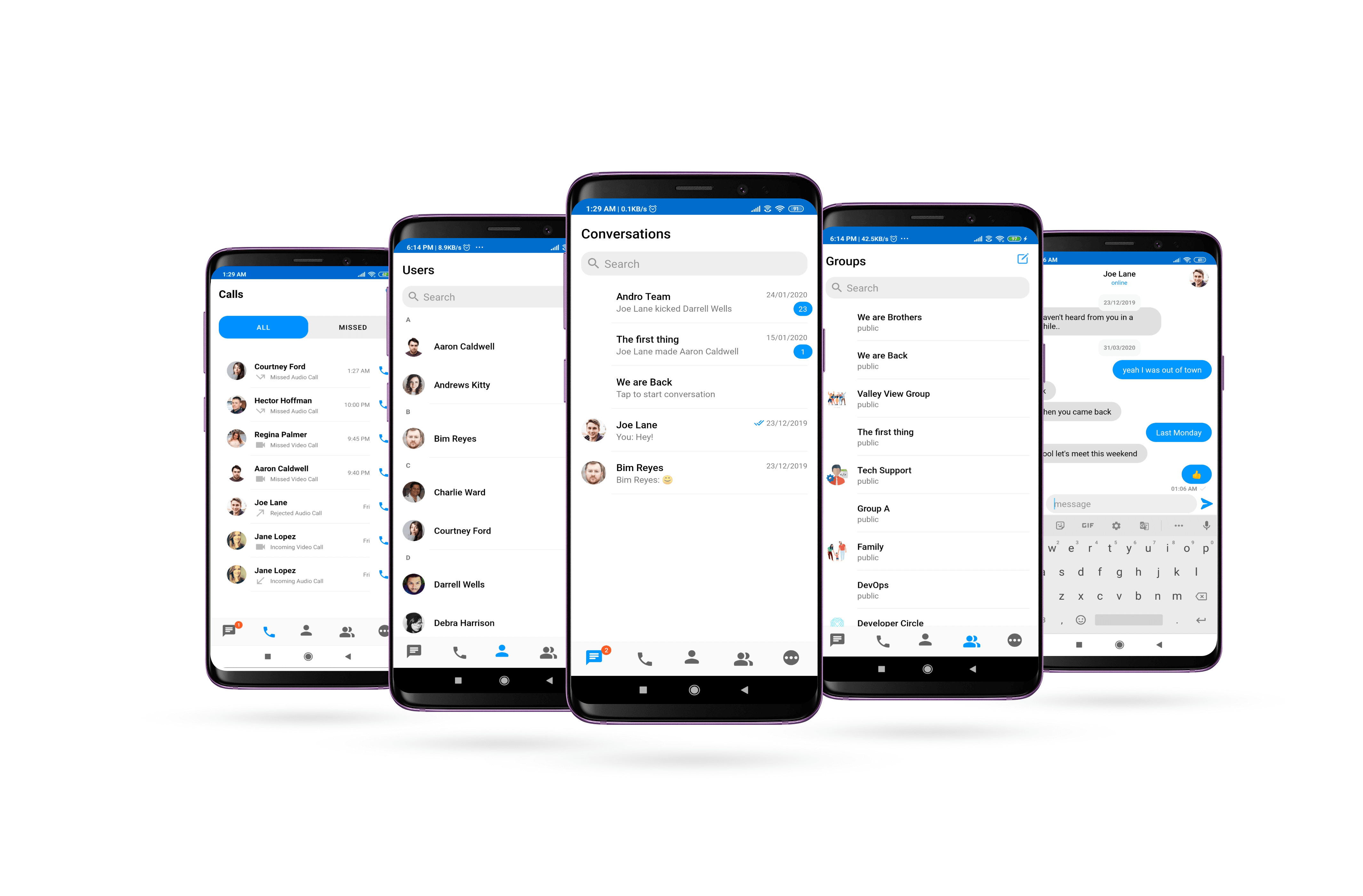 **CometChatUI** is an option to launch a fully functional chat application using the UI Kit. In UI Kit all the UI Components are interlinked and work together to launch a fully functional chat on your mobile/application.
To use CometChatUI user has to launch CometChatUI Activity. Add the following code snippet to launch `CometChatUI`.
```kotlin theme={null}
startActivity(Intent(this@YourActivity, CometChatUI::class.java))
```
## **See our Kotlin chat sample app**
Visit our [Kotlin chat app](https://github.com/cometchat-pro/android-kotlin-chat-app) repository to run a sample app and see the UI Kit in action.
**CometChatUI** is an option to launch a fully functional chat application using the UI Kit. In UI Kit all the UI Components are interlinked and work together to launch a fully functional chat on your mobile/application.
To use CometChatUI user has to launch CometChatUI Activity. Add the following code snippet to launch `CometChatUI`.
```kotlin theme={null}
startActivity(Intent(this@YourActivity, CometChatUI::class.java))
```
## **See our Kotlin chat sample app**
Visit our [Kotlin chat app](https://github.com/cometchat-pro/android-kotlin-chat-app) repository to run a sample app and see the UI Kit in action.