> ## Documentation Index
> Fetch the complete documentation index at: https://cometchat-22654f5b-docs-audit-content-webhooks.mintlify.site/llms.txt
> Use this file to discover all available pages before exploring further.
# Managing Web Sockets Connections Manually
> Learn how to manage WebSocket connections in the CometChat React Native SDK, including connect, disconnect, and ping.
```javascript theme={null}
// Disable auto WebSocket connection during init
const appSettings = new CometChat.AppSettingsBuilder()
.setRegion("REGION")
.autoEstablishSocketConnection(false)
.build();
await CometChat.init("APP_ID", appSettings);
// Manually connect/disconnect/ping
CometChat.connect();
CometChat.disconnect();
CometChat.ping(); // Keep alive in background (call within 30s)
```
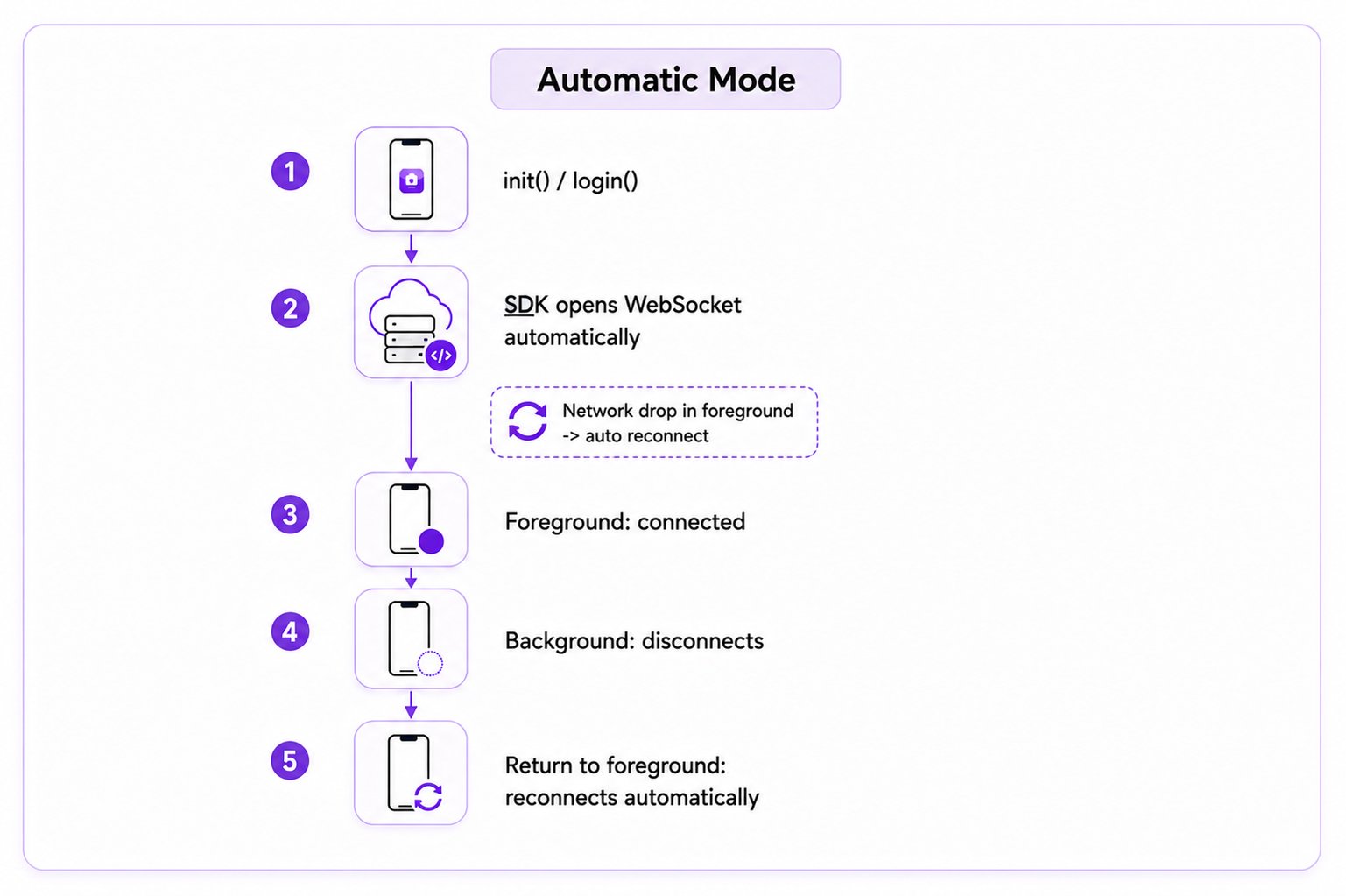
By default, the SDK automatically establishes and manages the WebSocket connection — it connects on login, reconnects on `init()` when a session exists, and handles reconnection on network drops. This page covers how to disable that and manage the connection yourself.
You'd want manual control when you need to conserve resources by connecting only when the user is actively chatting, or when you need precise control over when real-time events start flowing.
## Default Behavior (Auto Mode)
When `autoEstablishSocketConnection` is `true` (the default):
1. `CometChat.login()` logs the user in, saves their session locally, and opens a WebSocket connection
2. On app restart, `CometChat.init()` automatically reconnects using the saved session
3. The user immediately starts receiving real-time messages, presence updates, and call events
 | App State | Behavior |
| ----------------- | --------------------------------------- |
| App in foreground | Connected with WebSocket |
| App in background | Immediately disconnected with WebSocket |
If the app is in the foreground and there is no internet connection, the SDK will handle the reconnection of the WebSocket automatically in auto mode.
## Manual Connection Management
To take control of the WebSocket connection, set `autoEstablishSocketConnection(false)` during initialization:
```typescript theme={null}
let appID: string = "APP_ID";
let region: string = "APP_REGION";
let appSetting: CometChat.AppSettings = new CometChat.AppSettingsBuilder()
.subscribePresenceForAllUsers()
.setRegion(region)
.autoEstablishSocketConnection(false)
.build();
CometChat.init(appID, appSetting).then(
(isInitialized: boolean) => {
console.log("Initialization completed successfully");
},
(error: CometChat.CometChatException) => {
console.log("Initialization failed with error:", error);
}
);
```
```javascript theme={null}
let appID = "APP_ID";
let region = "APP_REGION";
let appSetting = new CometChat.AppSettingsBuilder()
.subscribePresenceForAllUsers()
.setRegion(region)
.autoEstablishSocketConnection(false)
.build();
CometChat.init(appID, appSetting).then(
() => {
console.log("Initialization completed successfully");
},
(error) => {
console.log("Initialization failed with error:", error);
}
);
```
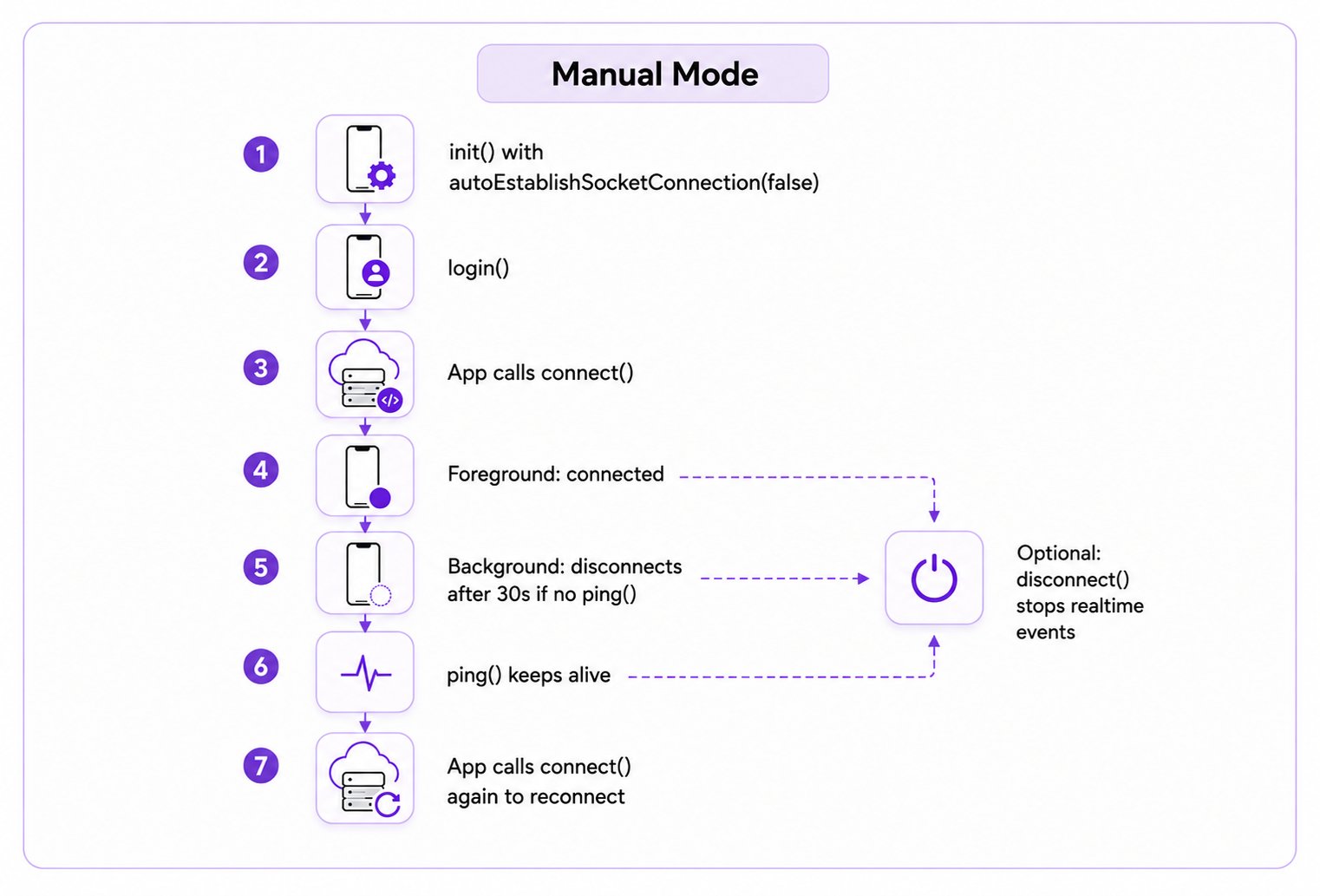
In manual mode, the SDK will disconnect the WebSocket connection after 30 seconds if the app goes into the background. The connection remains alive for 30 seconds after backgrounding, but disconnects after that if no pings are received.
| App State | Behavior |
| ----------------- | --------------------------------------- |
| App in foreground | Connected with WebSocket |
| App in background | Immediately disconnected with WebSocket |
If the app is in the foreground and there is no internet connection, the SDK will handle the reconnection of the WebSocket automatically in auto mode.
## Manual Connection Management
To take control of the WebSocket connection, set `autoEstablishSocketConnection(false)` during initialization:
```typescript theme={null}
let appID: string = "APP_ID";
let region: string = "APP_REGION";
let appSetting: CometChat.AppSettings = new CometChat.AppSettingsBuilder()
.subscribePresenceForAllUsers()
.setRegion(region)
.autoEstablishSocketConnection(false)
.build();
CometChat.init(appID, appSetting).then(
(isInitialized: boolean) => {
console.log("Initialization completed successfully");
},
(error: CometChat.CometChatException) => {
console.log("Initialization failed with error:", error);
}
);
```
```javascript theme={null}
let appID = "APP_ID";
let region = "APP_REGION";
let appSetting = new CometChat.AppSettingsBuilder()
.subscribePresenceForAllUsers()
.setRegion(region)
.autoEstablishSocketConnection(false)
.build();
CometChat.init(appID, appSetting).then(
() => {
console.log("Initialization completed successfully");
},
(error) => {
console.log("Initialization failed with error:", error);
}
);
```
In manual mode, the SDK will disconnect the WebSocket connection after 30 seconds if the app goes into the background. The connection remains alive for 30 seconds after backgrounding, but disconnects after that if no pings are received.
 | App State | Behavior |
| ----------------- | ------------------------------------------------------------- |
| App in foreground | Call `CometChat.connect()` to create the WebSocket connection |
| App in background | Disconnects if no ping is received within 30 seconds |
Once initialized with manual mode, use `connect()`, `disconnect()`, and `ping()` to control the WebSocket connection.
### Connect
Establishes the WebSocket connection. The user must be logged in first (check with `CometChat.getLoggedinUser()`). Once connected, real-time events start flowing.
```typescript theme={null}
CometChat.connect({ onSuccess: Function, onError: Function });
```
```javascript theme={null}
CometChat.connect({onSuccess?: Function, onError?: Function});
```
### Disconnect
Breaks the WebSocket connection. Real-time events stop until you call `connect()` again.
```typescript theme={null}
CometChat.disconnect({ onSuccess: Function, onError: Function });
```
```javascript theme={null}
CometChat.disconnect({onSuccess?: Function, onError?: Function});
```
### Ping (Background Keep-Alive)
To keep the WebSocket connection alive when your app is in the background, call `CometChat.ping()` within 30 seconds of your app entering the background or after the previous `ping()` call.
```typescript theme={null}
CometChat.ping({ onSuccess: Function, onError: Function });
```
```javascript theme={null}
CometChat.ping({onSuccess?: Function, onError?: Function});
```
To ensure the WebSocket connection stays alive, you can create a background service that calls `CometChat.ping()` in a loop every 25 seconds (under the 30-second timeout).
## Reconnection
If manual mode is enabled and the app is in the foreground, the SDK will automatically reconnect the WebSocket if the internet connection is lost. However, if the app is in the background and the WebSocket is disconnected or you called `CometChat.disconnect()`, you will need to call `CometChat.connect()` to create a new WebSocket connection.
***
## Next Steps
Monitor the SDK connection state in real time
Complete reference for all SDK event listeners
SDK installation and initialization guide
Review the fundamental building blocks of CometChat
| App State | Behavior |
| ----------------- | ------------------------------------------------------------- |
| App in foreground | Call `CometChat.connect()` to create the WebSocket connection |
| App in background | Disconnects if no ping is received within 30 seconds |
Once initialized with manual mode, use `connect()`, `disconnect()`, and `ping()` to control the WebSocket connection.
### Connect
Establishes the WebSocket connection. The user must be logged in first (check with `CometChat.getLoggedinUser()`). Once connected, real-time events start flowing.
```typescript theme={null}
CometChat.connect({ onSuccess: Function, onError: Function });
```
```javascript theme={null}
CometChat.connect({onSuccess?: Function, onError?: Function});
```
### Disconnect
Breaks the WebSocket connection. Real-time events stop until you call `connect()` again.
```typescript theme={null}
CometChat.disconnect({ onSuccess: Function, onError: Function });
```
```javascript theme={null}
CometChat.disconnect({onSuccess?: Function, onError?: Function});
```
### Ping (Background Keep-Alive)
To keep the WebSocket connection alive when your app is in the background, call `CometChat.ping()` within 30 seconds of your app entering the background or after the previous `ping()` call.
```typescript theme={null}
CometChat.ping({ onSuccess: Function, onError: Function });
```
```javascript theme={null}
CometChat.ping({onSuccess?: Function, onError?: Function});
```
To ensure the WebSocket connection stays alive, you can create a background service that calls `CometChat.ping()` in a loop every 25 seconds (under the 30-second timeout).
## Reconnection
If manual mode is enabled and the app is in the foreground, the SDK will automatically reconnect the WebSocket if the internet connection is lost. However, if the app is in the background and the WebSocket is disconnected or you called `CometChat.disconnect()`, you will need to call `CometChat.connect()` to create a new WebSocket connection.
***
## Next Steps
Monitor the SDK connection state in real time
Complete reference for all SDK event listeners
SDK installation and initialization guide
Review the fundamental building blocks of CometChat